Menu Bar & Popover
Magimail places a lightweight status icon in your macOS menu bar, allowing you to triage incoming email rapidly without keeping the main application window open.
Menu bar status
Section titled “Menu bar status”In Settings → Appearance → Dock & Menu Bar, Show menu bar tray turns the item on or off, and Menu bar status shows the different options below. The Settings Reference describes the rest.
- Menu bar icon only: just the glyph.
- Unread status dots: one dot per account.
- Unread count: one number per account.
The examples use two accounts: Work in blue and Personal in green.
Popover
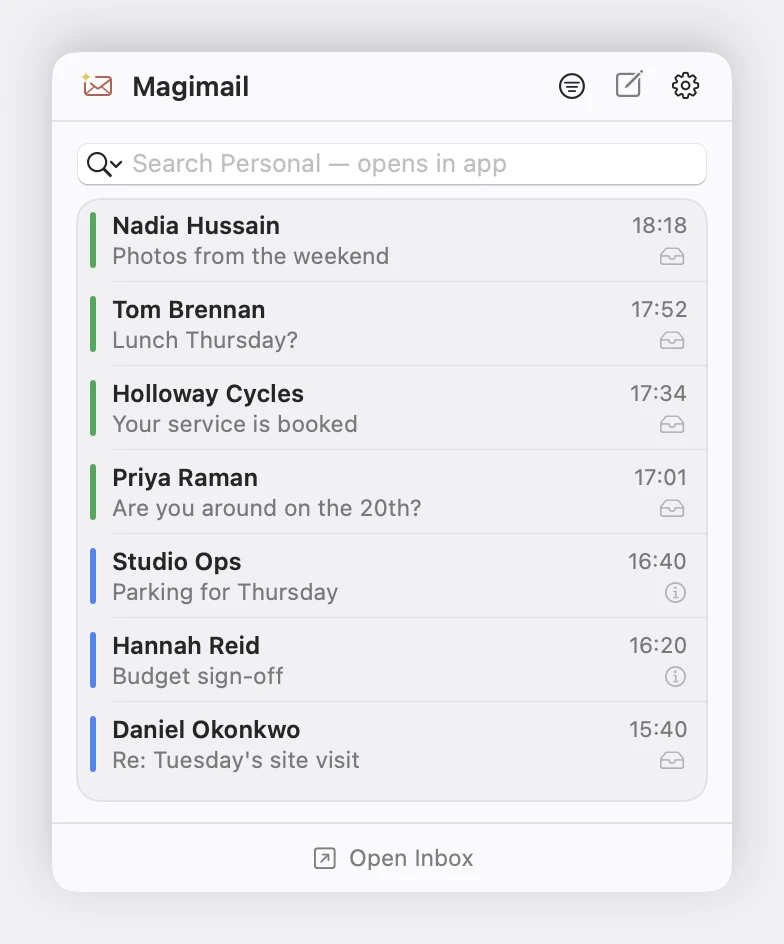
Section titled “Popover”Clicking the menu bar icon opens a floating popover listing your most recent email threads:
- Each row shows the sender’s name, subject line, relative timestamp, and an account colour dot.
- Left-click any thread to open it directly in the Magimail main window.
- The footer includes a direct Open Inbox button to raise Magimail with one click.
- The same feeds are on the desktop as widgets, drawn from the same local copy of your mail.
One-Time Verification Codes
Section titled “One-Time Verification Codes”When an authentication or login email arrives, Magimail inspects the subject line and message snippet for one-time verification codes and pins a hero card to the top of the popover. Clicking Copy writes the code straight to your clipboard and confirms with a brief “Copied” indicator.
The card stays in the menu bar until you archive or delete the email, or until the configured timer elapses. Opening or reading the message does not dismiss it, so you can check the email first and still copy the code from the menu bar.
Both controls sit in Settings → Appearance → Dock & Menu Bar: Show verification codes turns the card on or off, and Keep in menu bar for chooses how long it stays pinned (5, 10, 15 or 30 minutes). The Settings Reference describes them.
Filtering & Multi-Account Search
Section titled “Filtering & Multi-Account Search”The header of the menu bar popover contains quick-triage controls:
- Filter Menu:
- Unread Only: Toggle on to hide already-read threads and focus exclusively on mail requiring action.
- Account Filter: Switch between All Accounts (unified inbox stream) and individual accounts (e.g. Work, Personal, or Client).
- Search Bar & Account Target:
- Type any search query directly in the popover header.
- If you have multiple accounts, click the magnifying glass icon inside the search bar to target your query to a specific email account via a dropdown menu with colour dots.
- Pressing Return brings Magimail to the front and runs the search in Gmail.
- Quick Compose: Click the pencil icon to open a clean compose window immediately.
- Gear Menu: Offers Refresh Inbox (or press R while the popover is open), Preferences…, and Quit Magimail.
What raises a banner, and what each of its buttons does, is in Notifications & Badges.
Status Banners
Section titled “Status Banners”The popover provides instant feedback on the health of your accounts:
- All Caught Up: When there is no unread mail, the popover displays a clean “All caught up” indicator across your accounts.
- Offline Indicator: Appears if your Mac loses internet connection, confirming that cached data is being displayed.
- Sign In Required: If an account token expires or Google requests a password update, a warning banner appears with a 1-click Sign In button to re-authenticate without digging through settings.
Right-Click Actions
Section titled “Right-Click Actions”You can triage messages on the fly without opening them. Right-click any email row in the popover to display instant actions:
- Open in Magimail: Brings the main window forward and displays the selected email.
- Archive: Archives the thread immediately and removes it from your unread list.
- Mark as Read / Mark as Unread: Toggles the read state without opening the message.
- Delete: Moves the email directly to Bin.