Notifications & Badges
Magimail uses native macOS User Notifications to deliver fast alerts directly to your desktop, complete with 1-click triage actions right on the banner.
Notification Actions
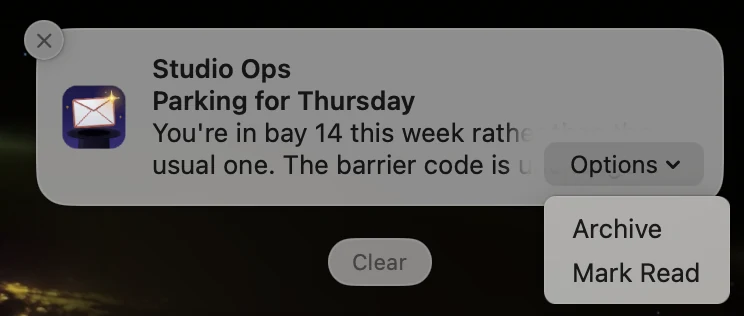
Section titled “Notification Actions”When an incoming email arrives, the notification banner displays the sender, subject, preview snippet, and your custom account colour dot. You can triage messages without bringing Magimail to the front:
- Archive: Archives the message immediately from the notification banner.
- Mark Read: Marks the email as read in your Gmail inbox.
- Delete: Moves the message directly to Trash.
- Copy Code: Appears automatically on verification emails (OTP codes) to copy the one-time code directly to your clipboard without switching apps.
- Click to Open: Clicking the banner raises Magimail and navigates straight to that conversation.
Category and Account Filters
Section titled “Category and Account Filters”In Settings → Notifications, you can set an alert level for each Gmail inbox category (Primary, Updates, Promotions, Social and Forums). The level applies to every account. The Settings Reference describes each control:
- Loud: Full banner with sound.
- Silent: Banner appears without playing an audio alert.
- Badge only: Increments the unread count in your Dock and menu bar without interrupting you with banners.
- Off: Completely ignores new arrivals in that category.
Check Intervals and Power States
Section titled “Check Intervals and Power States”In Settings → Advanced, Magimail lets you balance inbox freshness against laptop battery consumption. See the Settings Reference:
- On power adapter: Check intervals can be set as frequent as every 30 seconds, 1 minute, 2 minutes, 5 minutes, or 15 minutes.
- On battery: Select longer intervals (1 minute, 2 minutes, 3 minutes, 5 minutes, 10 minutes, or 15 minutes) to maximise battery life while traveling.
- Checks use lightweight Google Atom feeds, consuming negligible CPU and network bandwidth.
Dock Badge Modes
Section titled “Dock Badge Modes”In Settings → Appearance (under Dock & Menu Bar), you can choose how the red unread counter badge on Magimail’s Dock icon behaves. See the Settings Reference:
- All unread messages: Displays the complete backlog of unread mail across all active accounts.
- New messages only: Displays an unread badge only for messages that arrived while you were away, decrementing as you read them (similar to iOS Mail).
- Off: Keeps your Dock icon clean with no numeric badges.
The same tab sets whether the menu bar shows a dot, a number, or nothing for each account; Menu Bar & Popover covers what they show. Every other setting on this page is described in the Settings Reference.