Focus Filters
Magimail supports native macOS Focus Filters, allowing you to automatically control email notifications and account visibility based on your active Focus mode (such as Work, Personal, or Sleep).
Setting Up Focus Filters
Section titled “Setting Up Focus Filters”- Open macOS System Settings → Focus.
- Select an existing Focus (e.g. Work) or create a new one.
- Scroll down to Focus Filters and click Add Filter.
- Choose Magimail.
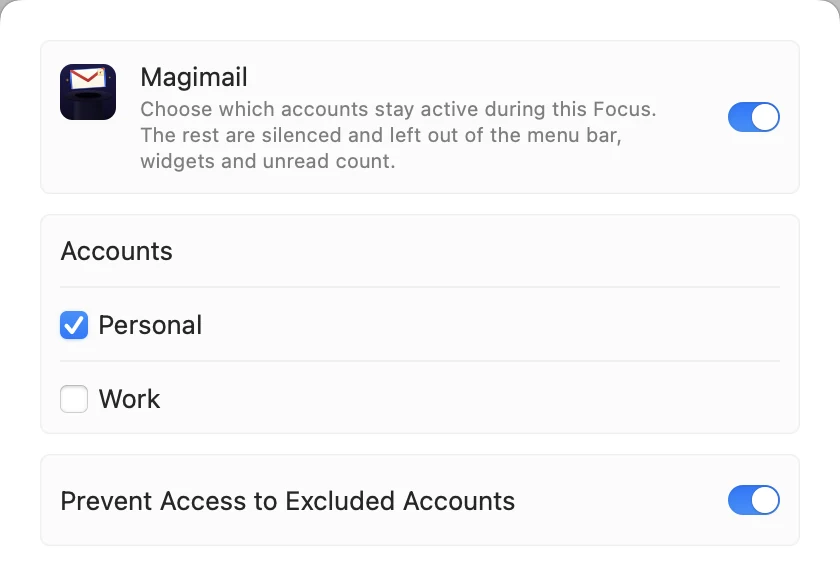
- Choose which accounts stay active during this Focus mode.
- Optionally enable Prevent Access to Silenced Accounts:
- When off, silenced accounts stop sending notifications and badge counts, but their tabs remain clickable if you manually navigate to them.
- When on, silenced accounts are completely greyed out in the toolbar and switcher, preventing accidental temptation to check work emails during personal time.
- Click Add to save the filter.
How Focus Filters Behave
Section titled “How Focus Filters Behave”When a Focus mode activates:
- Notifications: Excluded accounts immediately stop sending alert banners and notification sounds.
- Menu Bar & Widgets: Silenced accounts are removed from the aggregate unread total and hidden from menu bar previews and widgets.
- In-App Indicator: Magimail displays a subtle Focus badge showing that an active Apple Focus filter is currently applied.