Focus Filters
Magical integrates with macOS Focus Filters to automatically tailor your schedule, meeting alerts, and menu bar indicators to your current context.
Setting Up Focus Filters
Section titled “Setting Up Focus Filters”- Open macOS System Settings → Focus.
- Click on a Focus mode (e.g. Work or Personal).
- Under Focus Filters, click Add Filter.
- Choose Magical.
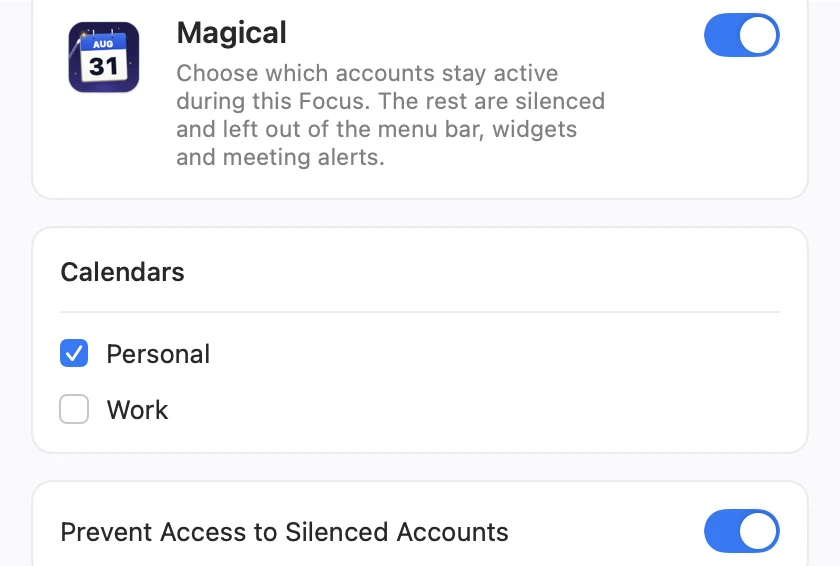
- Choose which accounts stay on, then which of their calendars matter. An account you turn off takes every calendar it has with it, and the calendars under an account you leave on are still individually switchable.
- Optionally toggle Prevent Access to Silenced Accounts:
- When off, silenced accounts stop firing notifications and countdowns, but you can still click their tabs if needed.
- When on, silenced accounts are greyed out in the toolbar and switcher until the Focus mode ends.
- Click Add to save.
How Focus Filters Behave
Section titled “How Focus Filters Behave”When your Focus turns on:
- Notification Suppression: Events on silenced calendars will not trigger alert banners, full-screen notifications or chimes.
- Menu Bar Countdown: The menu bar countdown and next-event title ignore silenced calendars, focusing only on relevant events (e.g. personal commitments during personal hours).
- Widgets: Desktop widgets filter out events belonging to silenced accounts.
- In-App Indicator: A subtle Focus indicator appears in Magical’s window confirming that an Apple Focus filter is active.