Companion Sidebar
Magical includes an adaptive native sidebar that sits directly inside your calendar window, giving you a unified view of your schedule across all your Google accounts.
Showing & Hiding the Sidebar
Section titled “Showing & Hiding the Sidebar”You can toggle the sidebar at any time:
- Menu: Choose View → Toggle Sidebar from the macOS menu bar.
- Keyboard Shortcut: Press ⌘\.
- Toolbar: Click the Sidebar button in your window toolbar (or add it via View → Customise Toolbar…).
Keeping in Sync with Google Calendar
Section titled “Keeping in Sync with Google Calendar”The companion sidebar dynamically adapts to whatever view you are using in Google Calendar:
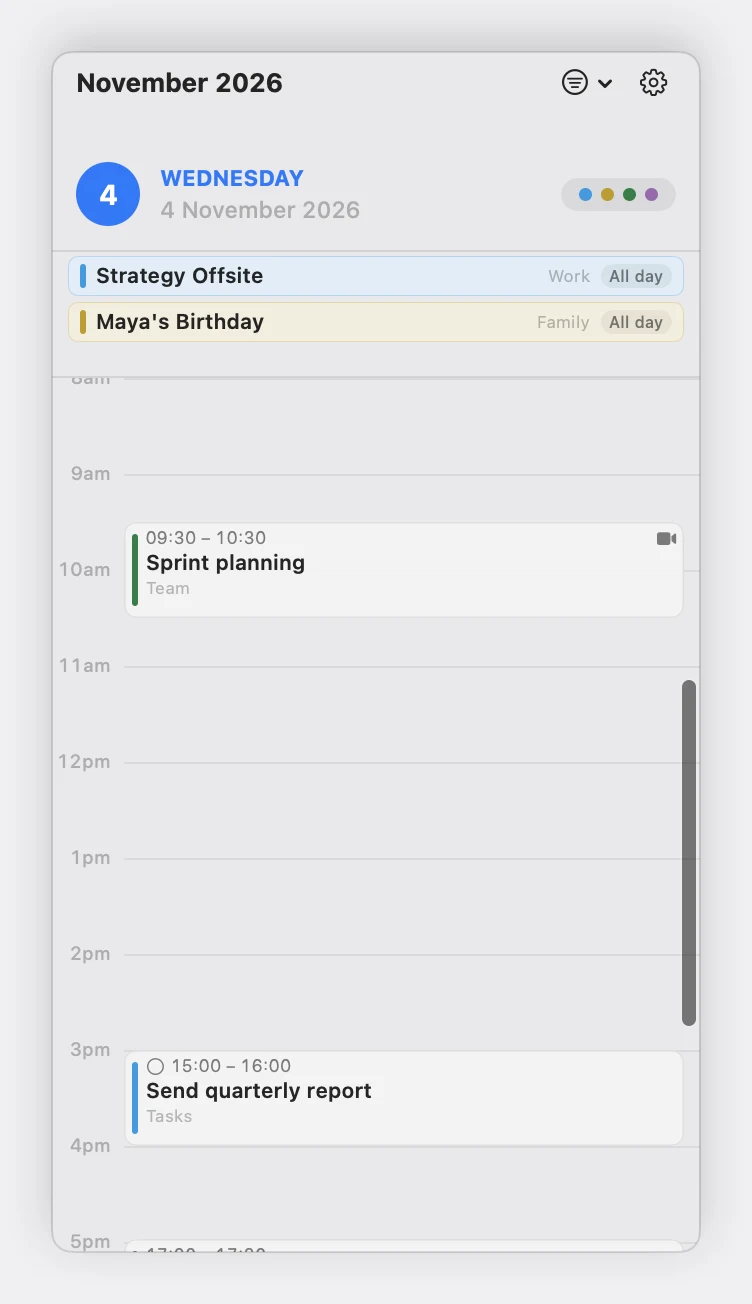
- Day View:
- Focuses on the single active day, featuring pinned all-day events at the top and an hourly day grid matching your daily schedule.
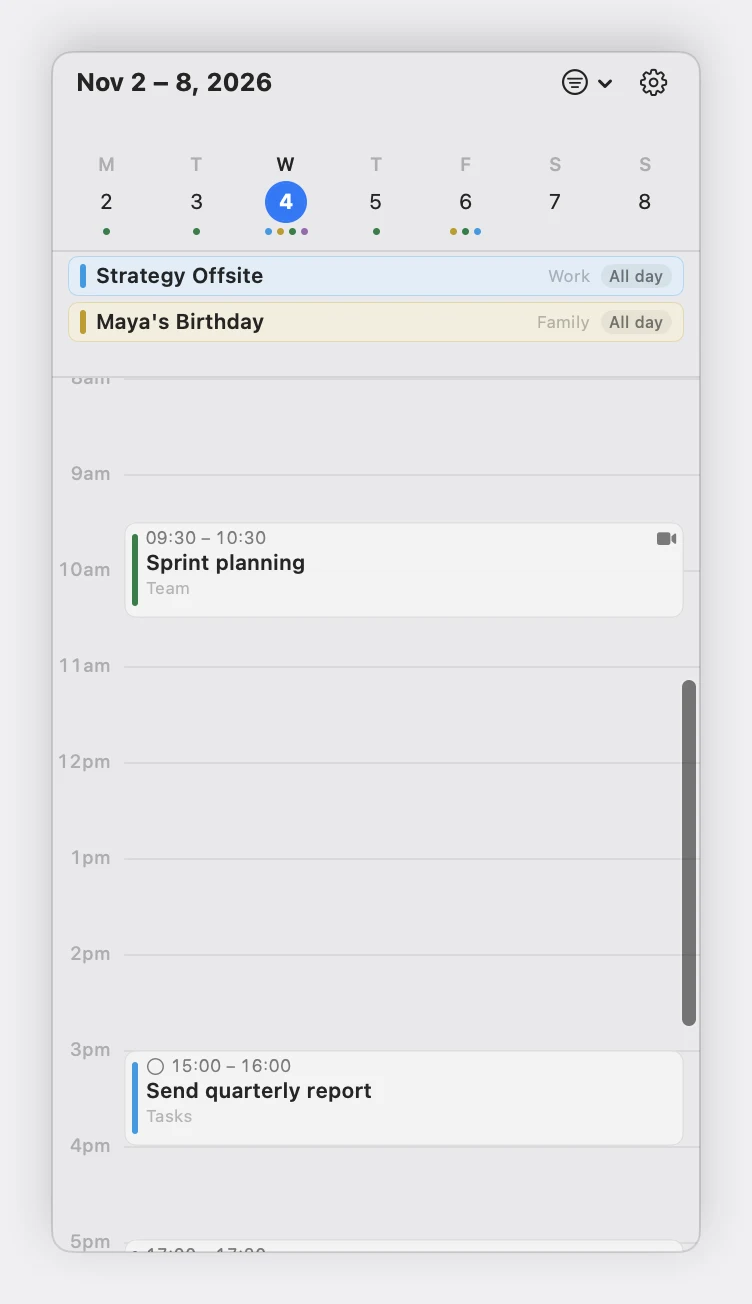
- Week & 4-Day Views:
- Automatically switches to a Week Scrubber, showing each day of the period with date numbers, selection rings, and activity dots.
- Click any day in the scrubber to focus the agenda on that date.
- With the pointer over the sidebar, scroll sideways on a trackpad (or use a mouse’s horizontal wheel) to step forward and back through the days. One swipe moves one day, and it stops at the end of the period Google Calendar is showing rather than scrolling into the next week.
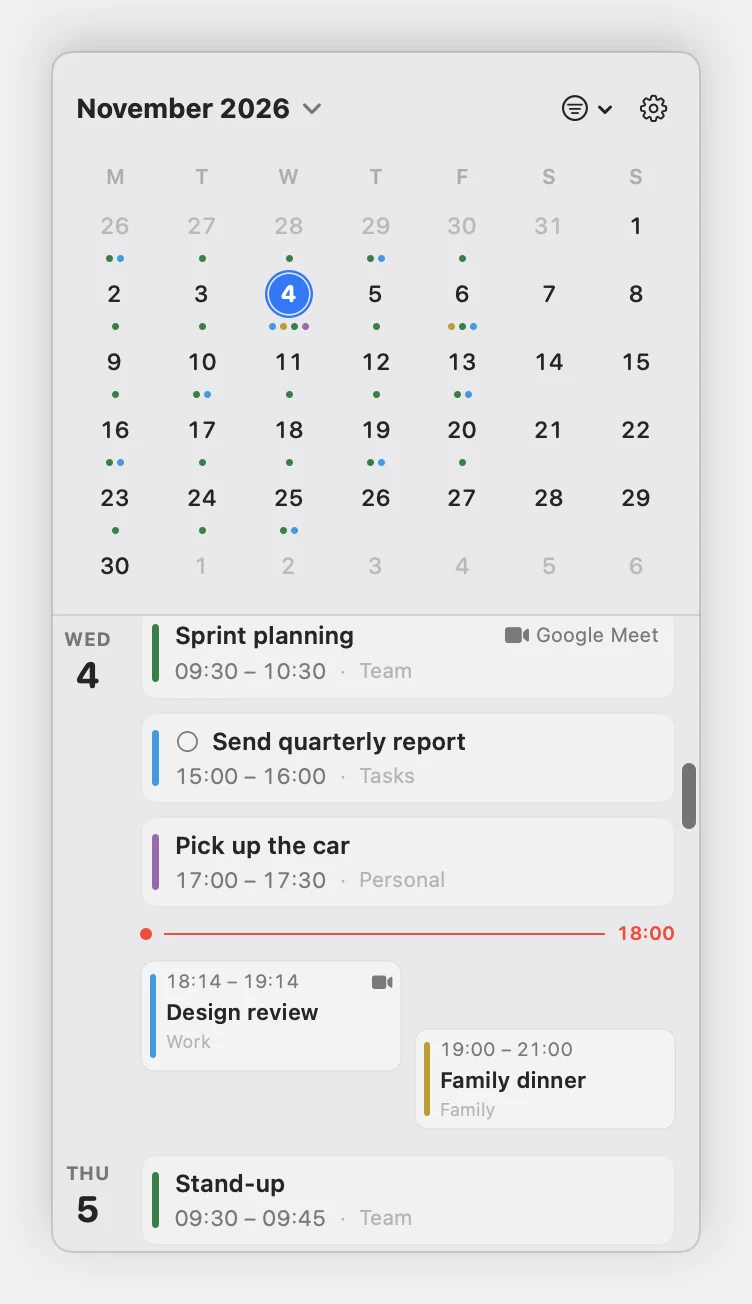
- Month View:
- Displays a collapsible Mini Month Grid at the top with density dots showing busy days, fixed to the month Google Calendar is showing.
- The agenda below lists only the days drawn in that grid, including the leading and trailing days from the neighbouring weeks.
- Click a day from a neighbouring month and the agenda moves to it while the grid stays where it is. Hovering a day’s events highlights that day in the grid.
- Schedule View:
- Shows the same mini month with a continuous agenda, grouping upcoming meetings and tasks chronologically.
- The
<and>arrows beside the month step through the months the agenda covers, and scrolling towards the end loads further events automatically. - A red line marks the current time of day (
● ────────────── 14:35).
The now line and every event time follow your Mac’s 12- or 24-hour setting. See the Settings Reference.
Google Calendar chooses the range; the sidebar follows it. Moving to another date in Google Calendar updates the sidebar at once, and the sidebar never navigates Google Calendar to a different date. Clicking a date, or a day in the scrubber, changes what the sidebar shows and leaves Google Calendar alone. The month, week and day headings are labels, not buttons; in Schedule view the month heading returns the selector to the month Google Calendar is on.
Viewing All Accounts & Filtering
Section titled “Viewing All Accounts & Filtering”The companion sidebar displays events from all your connected Google accounts in a single, unified timeline:
- Calendar Colours: Every meeting is tinted with the colour of its calendar, keeping schedules easy to scan at a glance.
- Filter Menu: Click the Filter Menu in the sidebar header to hide or show individual calendars, and to choose whether completed tasks are shown. Filter choices stay in lockstep with the menu bar popover and the settings window.
Quick Actions & Meeting Triage
Section titled “Quick Actions & Meeting Triage”Every event card in the sidebar is fully interactive:
- Jump Straight to Event: Click any event in the sidebar to reveal and focus it in Google Calendar, switching accounts automatically if it belongs to another calendar.
- 1-Click Video Calls: Click Join on any meeting with a Google Meet, Zoom, Microsoft Teams, or Webex link to jump straight into the call.
- RSVP in Place: Answer meeting invites with Yes, Maybe, or No directly from the card.
- Google Tasks: View and complete your Google Tasks alongside your meetings.