Desktop Widgets
Magical provides native desktop widgets to keep your upcoming agenda and video meetings at a glance.
Available Widget Layouts
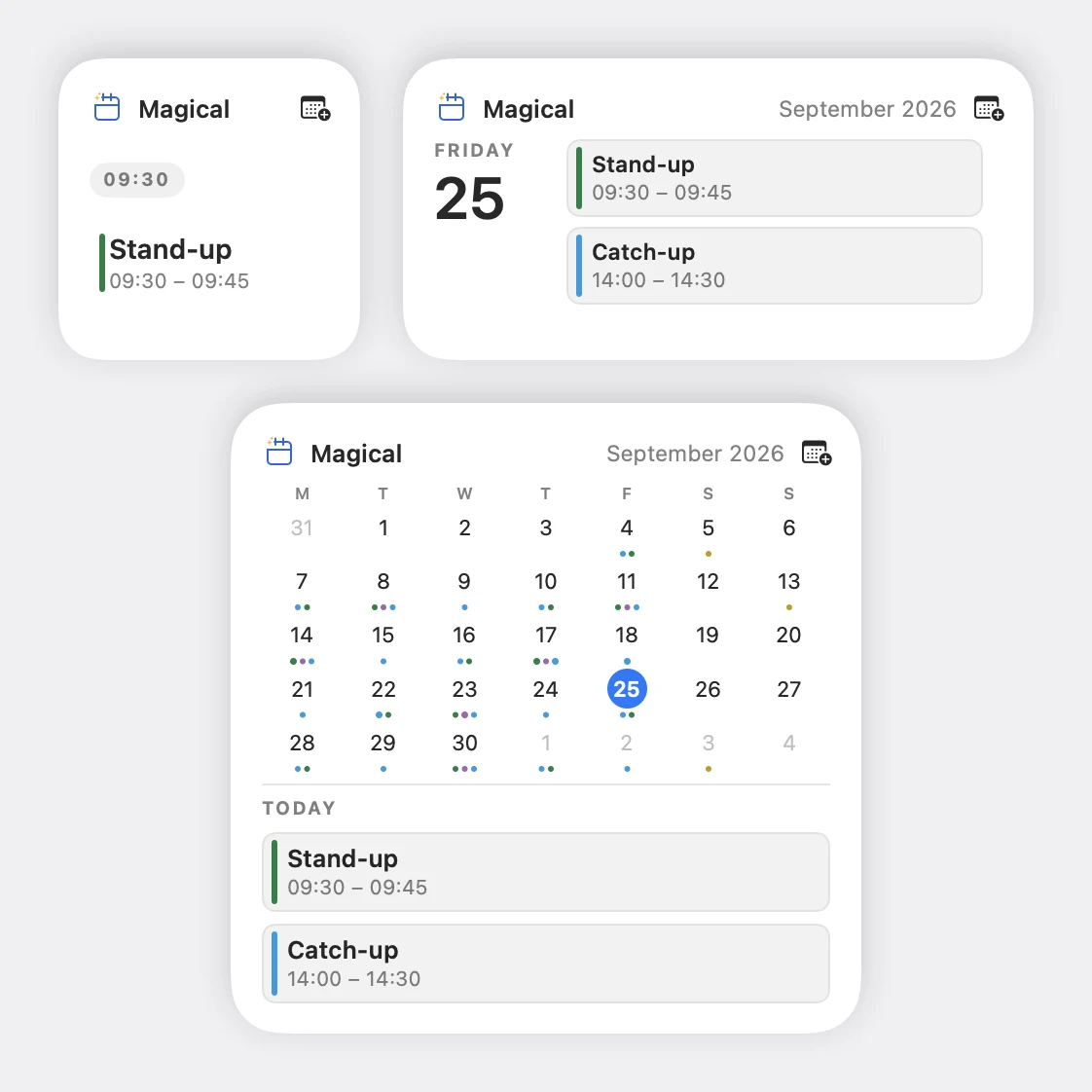
Section titled “Available Widget Layouts”Magical provides three widget layouts, showing the same agenda the menu bar popover draws:
- Up Next (Small & Medium):
- Displays your immediate next meeting or current ongoing event.
- Shows relative countdown (e.g.
in 15m) or a greenNOWindicator. - Displays event title, formatted time, and calendar colour accent bar.
- Includes a 1-tap Join button that connects directly to video conferences (Google Meet, Zoom, Microsoft Teams, or Webex) without opening the main window.
- Tapping the event title opens Magical directly to that event (
magical://event).
- Agenda (Medium & Large):
- Provides a multi-day schedule grouped chronologically by date.
- Displays start and end times, event titles, calendar colour indicators, and video call icons.
- Carries an inline Add Event button, which opens the event composer through
magical://quick-add.
- Month (Medium & Large):
- Displays a monthly calendar grid with coloured density dots on days containing scheduled events.
- Displays today’s upcoming agenda alongside the calendar grid.
- Carries an inline Add Event button that opens the event composer.
Times and dates on a widget follow your Mac’s clock and region, the same as the menu bar. See the Settings Reference.
Adding & Configuring Widgets
Section titled “Adding & Configuring Widgets”You can filter which calendars appear on any placed widget:
- Right-click any open space on your desktop and select Edit Widgets… (or open Notification Centre and click Edit Widgets).
- Choose Magical from the gallery and drag a widget onto your desktop or into Notification Centre.
- Filtering Specific Calendars:
- Right-click the placed widget on your desktop.
- Choose Edit “Magical”….
- Click Choose Calendars: Select exactly which calendars from your connected accounts are included in this widget. You can create separate widgets for personal and work schedules.
- Instant Synchronisation:
- Changes made in Magical, whether you add an event, answer an invitation or move a meeting, reach the widget as you make them. The app and its widgets read the same local copy of your calendar, so a widget never waits on the network.
Dock Icon Date & Badge
Section titled “Dock Icon Date & Badge”Magical also updates its macOS Dock icon dynamically:
- Displays the current month and date number, rolling over automatically at midnight.
- Pending meeting invitations appear as a numeric badge over the Dock icon. Invitation Tray covers what it counts and how to clear it.