Window Toolbar
Magimail embeds Gmail within a native macOS toolbar that follows Apple platform standards, providing quick access to multi-account navigation, search and message triage.
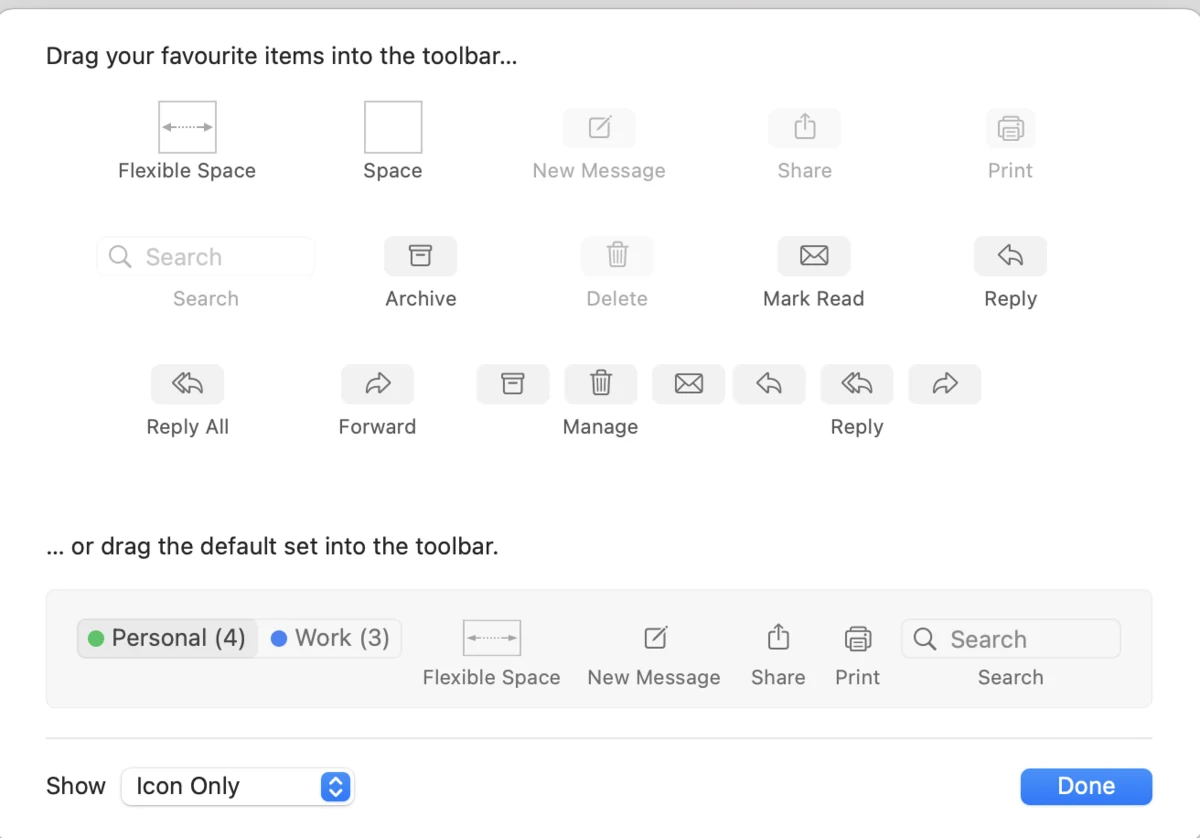
Toolbar Arrangement & Default Set
Section titled “Toolbar Arrangement & Default Set”By default, Magimail arranges the toolbar with:
- Account Switcher: Fixed on the far left, showing your connected Google accounts with profile initials, colour accents, and live unread badges. Click any account tab or press ⌘1–⌘9 to switch accounts instantly.
- Flexible Space: Keeps your message actions comfortably separated from account tabs.
- Compose: Opens a new compose draft (⌘N).
- Share Item: Opens macOS system sharing options for the currently selected message or thread URL.
- Print Item: A dedicated menu button offering Print… (⌘P) and Export as PDF….
The switcher on the left is the same account list as Multiple Accounts, which covers what each account keeps separate.
Customising Toolbar Buttons
Section titled “Customising Toolbar Buttons”You can tailor which buttons appear in the Magimail window header:
- Right-click any empty area of the window toolbar, or choose View → Customise Toolbar… from the menu bar.
- The native customisation palette drops down with the full list of available items:
- Account Switcher: Fixed to the leading edge (immovable).
- Compose: Open a new email draft (⌘N).
- Search Field: Native search field with Google search operator completion.
- Archive: Archive selected threads immediately.
- Delete: Move selected messages to Trash.
- Mark Read / Unread: Toggle read state for selected threads.
- Reply: Draft a reply to the sender.
- Reply All: Reply to all participants on the active thread.
- Forward: Forward the active message.
- Manage Group: A compact 3-in-1 segmented control combining Archive, Delete, and Toggle Read.
- Reply Group: A compact segmented control combining Reply, Reply All, and Forward.
- Print Item: Dropdown menu for printing or generating a clean PDF.
- Share Item: Standard macOS Share picker.
- Space & Flexible Space: Spacing elements to group or align buttons across the window.
- Drag buttons into or out of the toolbar to match your triage workflow.
- To reset to the original arrangement, drag the Default Set row onto the toolbar.
- Click Done to save your changes.
Trackpad & Mouse Navigation
Section titled “Trackpad & Mouse Navigation”Moving back and forward through your email history uses the same gestures as the rest of macOS:
- Trackpad Two-Finger Swipes: Swipe two fingers right across your trackpad to step Back (for example, jumping out of an opened email back into your inbox). Swipe two fingers left to step Forward.
- Mouse Side Buttons: If you use an external mouse with side buttons (Buttons 4 and 5), pressing the back button takes you back to your previous view, and pressing forward moves you forward.
- Keyboard Shortcuts: You can also press ⌘[ to go back and ⌘] to go forward.
- Mouse Wheel Behaviour: A horizontal flick on an external mouse wheel smoothly scrolls message content horizontally rather than accidentally navigating back, which would lose your place.
Native Search Bar
Section titled “Native Search Bar”When the search bar is placed in your toolbar:
- Click the search box to focus it, and press Esc to clear it.
- Type any standard Gmail search operator (e.g.
from:taylor is:unread,has:attachment filename:pdf,larger:10M). - Press Return to run the query in the account the window is showing.
- ⌥⌘F (Edit → Find → Search Mailbox) puts the caret in Gmail’s own search box instead, which is the field Gmail’s filter chips and suggestions belong to.