Menu Bar & Popover
Magical keeps your schedule in the menu bar, without a window in the way.
Status Icon Display Modes
Section titled “Status Icon Display Modes”In Settings → Appearance, which the Settings Reference describes, you can customise how Magical appears in your macOS menu bar:
- Next event: Displays the title and countdown (e.g.
in 12morNOW) of your upcoming meeting. - Day of month: Displays today’s date number (e.g.
18). - Day and month: Displays the short date (e.g.
Oct 18). - Icon only: Shows a clean calendar glyph.
The date in the menu bar follows your Mac’s region, so Day and month reads 18 Oct or Oct 18, and every time in the popover follows its 12- or 24-hour setting. See the Settings Reference.
With Next event selected, Colour by account tints the countdown with the accent colour of the account hosting the meeting.
Popover
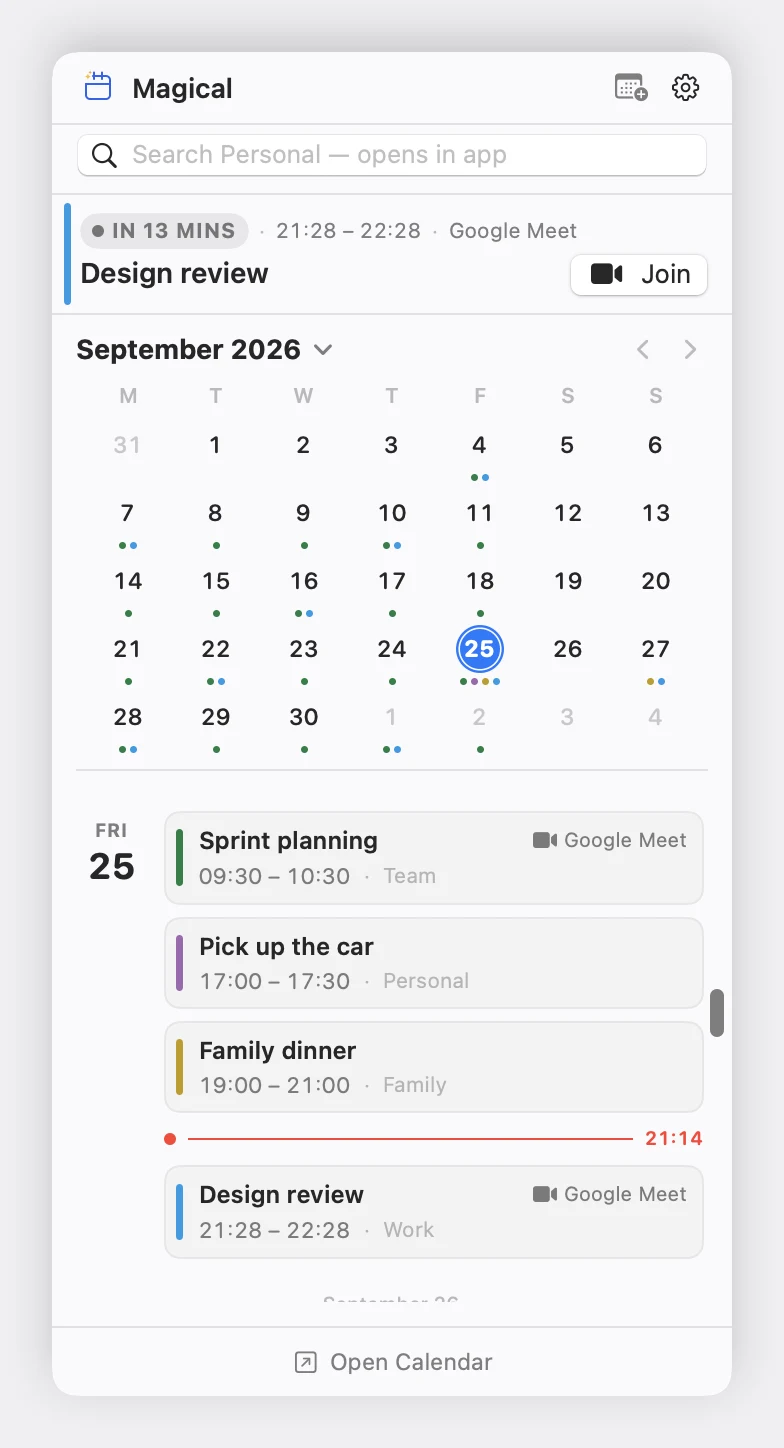
Section titled “Popover”Clicking the menu bar icon reveals your interactive day agenda, which is also what the desktop widgets show:
- Up Next Hero Card: Highlights your ongoing or immediate next meeting with attendees, location, and conference platform.
- Join Button: 1-click video call join for Google Meet, Zoom, Microsoft Teams, and Webex.
- Agenda Timeline: Displays all scheduled events grouped chronologically, with current events highlighted and past events dimmed.
- Mini Month View:
- Click the chevron next to the month title to expand or collapse a compact monthly grid with density dots for busy days.
- Click the Month Title at any time to instantly jump the agenda back to Today.
- Click any date cell in the mini month to smoothly scroll the agenda timeline straight to that day.
- Hovering a day’s events in the agenda highlights that day in the grid and moves the grid to its month, without moving the agenda underneath the pointer.
- Endless Scrolling: As you scroll towards the bottom of your agenda, Magical fetches and streams the next few months of events automatically.
- Quick Add: Opens the event composer from the header.
- Footer Link: A dedicated Open Calendar button at the bottom of the popover brings the main window forward.
Filtering & Multi-Account Search
Section titled “Filtering & Multi-Account Search”The popover header includes quick controls to keep your view focused:
- Filter Menu:
- Shows all connected Google accounts and their sub-calendars (Primary, Team, Birthdays, Holidays, and subscribed calendars).
- Toggle any calendar on or off with a single click to instantly declutter your agenda view.
- Also carries Show Completed Tasks. Everything in this menu is kept in step with the companion sidebar and the settings window, so a change in one place moves the others immediately.
- Search Bar & Account Target:
- Type in the search box to find meetings by title, organiser, or location.
- Click the magnifier icon in the search field to select a specific account or search across all accounts simultaneously.
- Gear Menu: Contains Show Completed Tasks, Refresh Calendars (or press R while the popover is open), Preferences…, and Quit Magical. See Google Tasks for the toggle.
Status Banners
Section titled “Status Banners”If syncing is interrupted, the popover displays clear diagnostic alerts:
- Sync Status: Shows Not up to date and how long ago the account last synced, if network issues delay updates.
- Offline Banner: Indicates when your Mac has lost internet connection.
- Sign In Required: Appears if a Google session expires, providing a 1-click Sign In button.
Invitations in the Popover
Section titled “Invitations in the Popover”A meeting that is waiting for your reply is drawn as an outlined event card with a Reply needed badge and a question mark icon, so it reads differently from a meeting you have accepted. A tentative reply shows a dashed border and a Maybe chip.
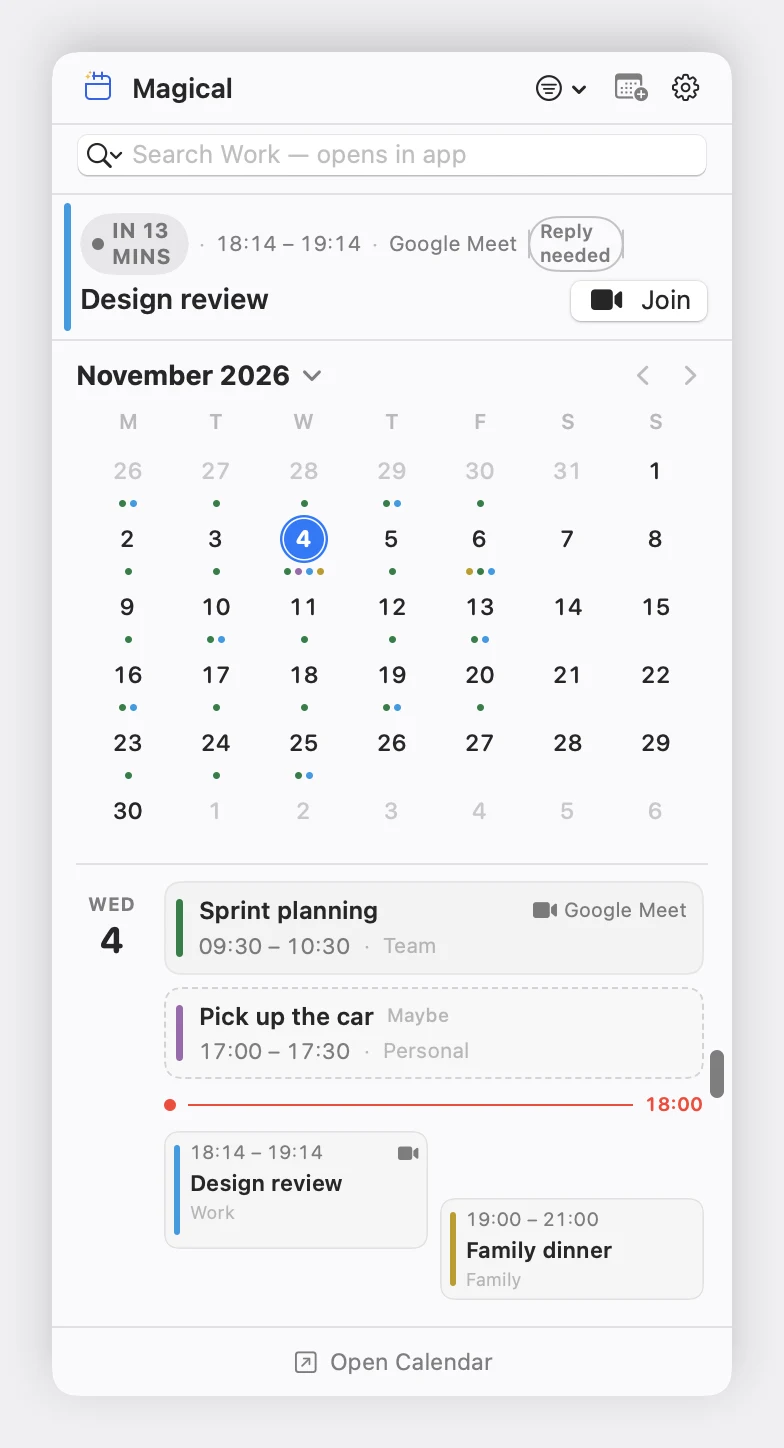
Right-click the card to answer it from the popover. The count of invitations still awaiting a reply lives in the toolbar tray and the Dock badge. Invitation Tray covers those, and Meeting Alerts and Invitations covers the banner that announces a new one.
Right-Click Actions
Section titled “Right-Click Actions”Right-click any event card in the popover to perform instant actions:
- Open in Magical: Jumps directly to the event inside the main calendar window.
- Join Meeting: Launches the attached video call directly.
- Copy Event Link: Copies the Google Calendar event URL to your clipboard for sharing with colleagues.
- RSVP: Choose Yes, Maybe, or No from the submenu. A checkmark indicates your current response, and the answer reaches Google Calendar as it lands.
- Mark Complete / Mark Incomplete: Marks a Google Task done, or re-opens it, in Google Tasks. See Google Tasks.
- Delete Event / Delete Task: Deletes the event or task with a native confirmation dialogue. For a recurring event, it deletes the occurrence you are looking at rather than the series. See Google Tasks.