Desktop Widgets
Magimail includes native desktop widgets. They show the same mail the menu bar popover does, drawn from the copy of your inbox kept on this Mac.
Available Widget Layouts
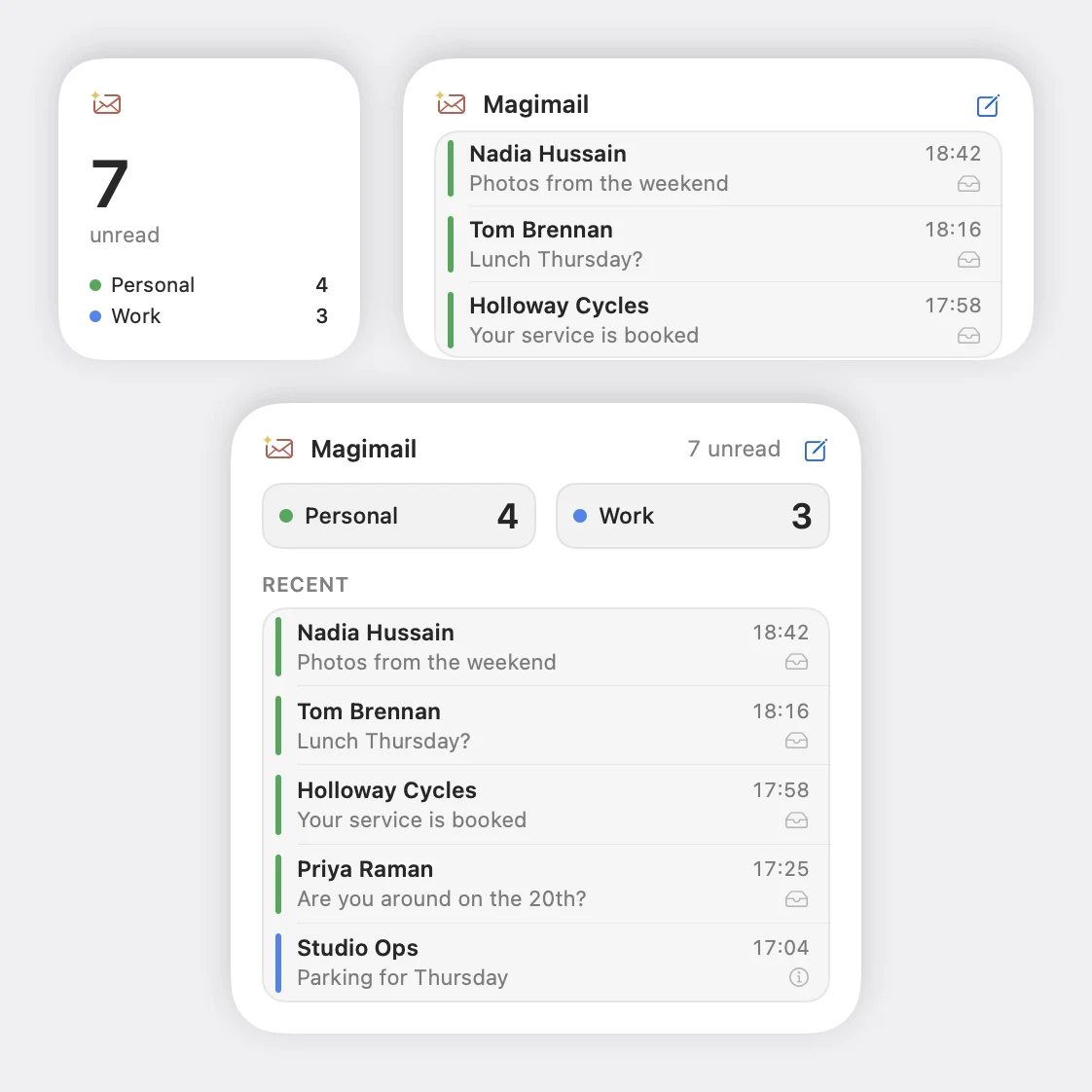
Section titled “Available Widget Layouts”Magimail provides four widget sizes:
- Unread (Small):
- Displays total unread count across all connected accounts with Magimail brand mark styling.
- Clicking the widget opens Magimail straight to your inbox (
magimail://inbox).
- Quick Actions (Medium):
- Shows an unread breakdown per account with each account’s custom colour indicator.
- Includes 1-tap quick compose buttons for each account.
- Recents (Medium):
- Lists recent email threads with sender names, subject lines, timestamps, and read/unread indicators.
- Dashboard (Large):
- Combines an unread count summary across all accounts with a detailed list of the latest incoming message threads.
Adding & Configuring Widgets
Section titled “Adding & Configuring Widgets”You can place and configure widgets directly on your desktop or in Notification Centre:
- Right-click any open space on your desktop and select Edit Widgets… (or open Notification Centre and click Edit Widgets at the bottom).
- Locate Magimail in the widget gallery and drag your preferred size onto your desktop or into Notification Centre.
- Configuring Recents & Dashboard Widgets:
- Right-click the placed widget on your desktop.
- Select Edit “Magimail”….
- Toggle Unread only:
- Off (default): Shows the latest incoming threads regardless of whether they have already been read.
- On: Filters the list strictly to threads awaiting your attention.
- Instant Background Sync:
- Widgets read the copy of your mail Magimail keeps on this Mac, so they draw before a connection is made.
- When you archive, read or receive a message, the app tells its widgets at once and they redraw with it.