Window Toolbar
Magical wraps Google Calendar in a native macOS toolbar. It provides platform-standard date navigation, pending invitation management and quick event creation without relying on web page buttons.
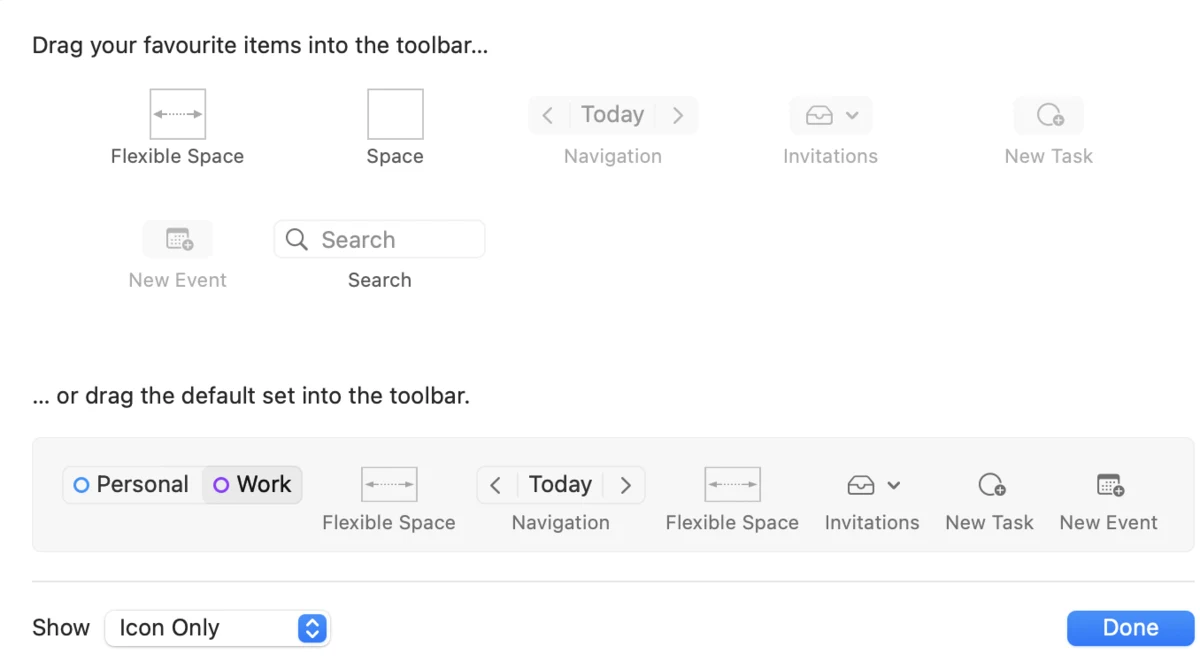
Toolbar Arrangement & Default Set
Section titled “Toolbar Arrangement & Default Set”By default, the Magical toolbar contains:
- Account Switcher: Immovable on the far left, showing initials and unread invitation badges for each connected Google account. Press ⌘1–⌘9 to jump between accounts.
- Flexible Space: Distributes controls cleanly across your window.
- Calendar Navigation Control (
< Today >):- Moves back one period (previous day, week, or month depending on your active calendar view).
Today: Immediately centres the view on today’s schedule.- Moves forward one period into upcoming dates.
- Invitations Tray: Carries a count of the invitations awaiting your reply, and opens a menu listing them with 1-click Accept, Maybe, Decline, Mark as Read and Open in Calendar. See Invitation Tray.
- New Task: Opens Google Calendar’s new-task field for the account the window is showing. See Google Tasks.
- New Event: Opens the event creation modal (⌘N).
- Companion Sidebar: Toggles the companion sidebar (⌘\). See Companion Sidebar.
Customising Toolbar Buttons
Section titled “Customising Toolbar Buttons”You can tailor which controls appear in the Magical window:
- Right-click any blank area of the toolbar, or choose View → Customise Toolbar… from the menu bar.
- The customisation sheet drops down with all available items:
- Account Switcher: Pinned to the left (immovable).
- Navigation Group (
< Today >): Date period switcher and Today jump. - Invitations Tray: Live badge and RSVP dropdown.
- New Event Button: Rapid calendar event composer.
- New Task Button: Instant Google Task creation. See Google Tasks.
- Companion Sidebar: Toggles the multi-account companion sidebar. See Companion Sidebar.
- Search Field: Native search field for calendar events.
- Space & Flexible Space: Spacing elements to arrange items.
- Drag items into the toolbar, or drag unwanted items off the bar until they poof.
- Drag the Default Set from the bottom to reset at any time.
- Click Done to save your layout.
Trackpad & Mouse Navigation
Section titled “Trackpad & Mouse Navigation”Magical separates date browsing from history navigation:
- Trackpad Two-Finger Swipes: Swiping horizontally with two fingers across your trackpad advances or rewinds your calendar dates:
- Swipe two fingers right: Glides to the Previous Period (yesterday, last week, or last month).
- Swipe two fingers left: Glides to the Next Period (tomorrow, next week, or next month).
- Horizontal Mouse Wheel: Flicking the tilt wheel left or right on an external mouse similarly shifts your calendar period forward or backward without touching the keyboard.
- Mouse Side Buttons (Back & Forward): Unlike date swiping, your mouse side buttons handle navigation history:
- Pressing the Back side button steps back out of the event creation modal, dismisses an active search query, or returns you to your previous schedule after jumping to a date from a deep link.
- Pressing the Forward side button traverses forward through your navigation trail.
- Keyboard Equivalents: Press K or P for Previous Period, J or N for Next Period, and T to return to Today. ⌘[ and ⌘] move back and forward through history, as they do everywhere else on the Mac.
Native Search Bar
Section titled “Native Search Bar”When the search field is placed in your toolbar:
- Click the field to focus it, and press Esc to clear it.
- Type what you are looking for: an event name, an attendee, a room or a location. Google Calendar’s own search rules apply.
- Press Return to open Google Calendar’s search results for the account the window is showing.
- ⌥⌘F (Edit → Find → Search Calendar) opens the same search from the keyboard.